DVD copy updated for add selection functions for subtitle and sound track and support importing ISO files.
Mac DVD Video Converter

Mac DVD Ripper and Video Converter software
DVD copy updated for add selection functions for subtitle and sound track and support importing ISO files. http://htxt.it/mN8Q
Transfer your iPod to computer and iTunes here: http://htxt.it/WV9o
Aimersoft ipod/iPhone Transfer updated for iPhone OS 3.1 and new iPod touch 3G, More information: http://htxt.it/wFGz
I rip my DVDs, convert video for my iPod, iPhone, zune, and burn videos on a DVD with one tool. I didn`t need other tools with ultimate. http://htxt.it/jTOu
If you want to edit a DVD movie with Windows Movie Maker or import several DVD clips into Mac iMovie to build a new DVD, but you get frustrated with the DVD format, this guide may help you solve the problem.
Before you get started, it will be helpful if you learn something about the DVD, WMM and iMovie.
General DVDs have CSS copy protection in MPEG-2 or VOB format.
(Windows) Windows Movie Maker supports WMV, AVI and MPG video files.
(Mac) iMovie accepts MOV and MPEG4 video files.
This guide includes three parts;
1. How to put DVD movie into Windows Movie Maker.
2. How to add DVD clips to Apple Mac iMovie
3. How to convert MSWMM file to other video formats.
Part1. How to put DVD movie into Windows Movie Maker
Step1. To put a DVD movie into Windows Movie Maker, you have to rip your DVD to WMV or AVI video first, and then you can load it into Windows Movie Maker. I’d prefer using Aimersoft DVD Ripper to do this. You can get this program at: http://www.aimersoft.com/dvd-ripper.html
Then install and run it, put your DVD disc into your DVD drive, click “Load DVD” to locate your DVD file and import it, or load it by clicking “Load File” to add DVD IFO file. (This DVD Ripper can rip copyright protected DVD movies, but you should remember that it’s illegal rip DVD for any business purposes)
Step2. Select output format and subtitle
After you load the DVD files, click the format drop-down list to select “WMV – Windows Media Video (*.wmv)” or “AVI – Audio Video Interleaved (*.avi)” as the output format. A regular DVD movie has multiple subtitles and audio tracks, and you can select the right one for you. If you just want a certain part of the DVD movie, you can click “trim” to cut the DVD movie. Just drag the timeline bar to set the start and end time, and then blue line will be the captured parts.
For advanced user, if you want to output higher quality video, click the “Settings” button to open the panel, here you can customize video bitrate, audio bitrate, resolution, framerate, etc. Higher bitrate will result in bigger file size.
Step3. Start to convert
After the above steps, you just need to click “Start” and wait for the conversion to be finished. It takes about 40 minutes to convert a common two hours DVD movie.
Step4. Edit DVD with Windows Movie Maker (optional)
Run Windows Movie Maker, in the “Movie Task” bar, click “Add Video” to browse your computer and located the converted files, and then you can start to make personal movies.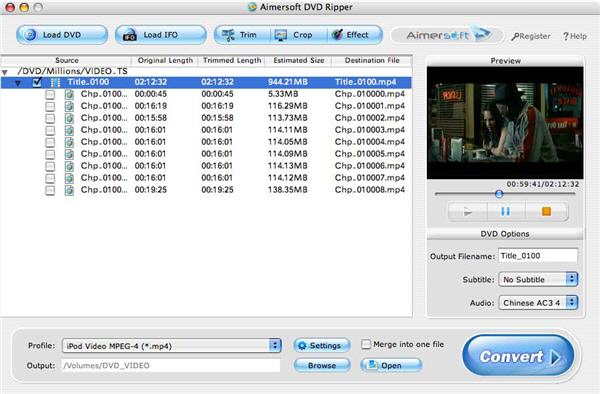
Tips: Many users may wonder how they can convert Windows Movie Maker file (*.MSWMM) to other video format. Actually, A *.MSWMM file is not a video file. It is a project file of Movie Maker (more like a record file). You have to open this file in Windows Movie Maker and save the movie to your computer: Go to Movie Tasks bar > Finish Movie > Save to my computer. After that you will have a WMV file which can be converted to another video format or burned to DVD.
Part2. How to add DVD clips into Apple iMovie.
iMovie is similar to Windows Movie Maker, it supports MOV and MP4 video, so you just need to convert your DVD movie to the right format. Aimersoft DVD Ripper has a Mac Version which supports both Mac OS Tiger and Leopard; you can download it for free from here:http://www.aimersoft.com/dvd-ripper-for-mac.html
The operation steps are similar to the windows version, so I will not bother to repeat everything here.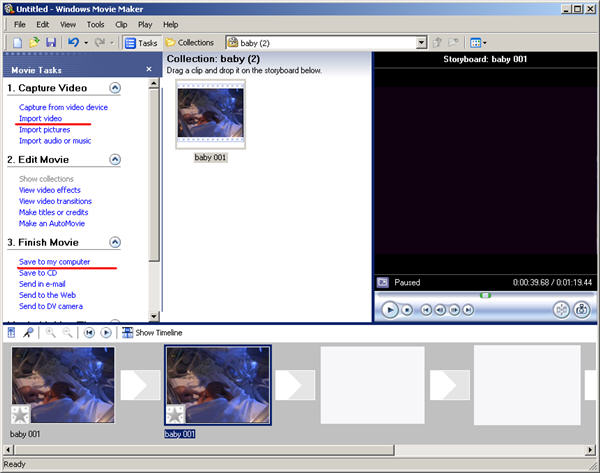
When the conversion is finished, you can run the iMovie, build a new project, and then drag the converted files to the work space to make personal files.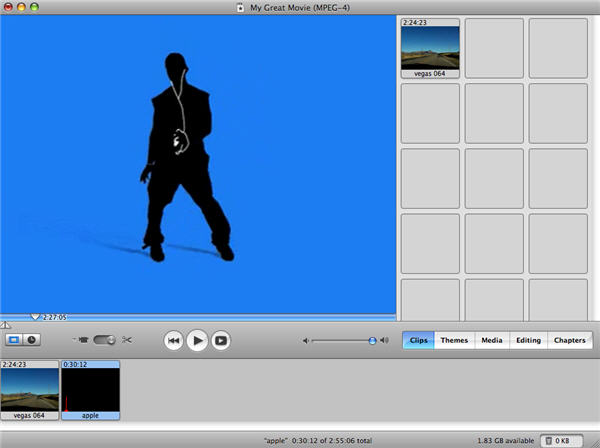
When the task is finished, In the Menu bar, Click "File" -> "Export" and save it as QuickTime video.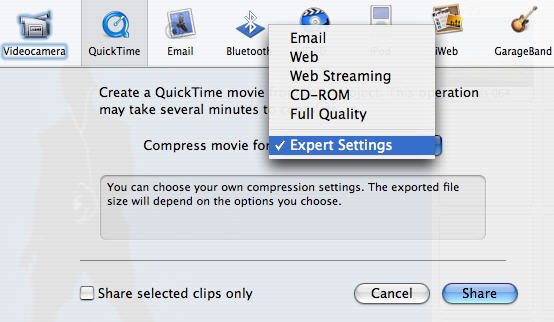
How to play your DVD movies on your iPod, iPhone, PSP, Zune, Creative Zen, Sandisk, Sony, iRiver, Archos, Cell Phone, PDA, Blackberry, Pocket PC, PS3, Xbox 360, Nokia, Apple TV, etc. http://htxt.it/Qq6p
How to rip DVD to AVI, MKV, MP4, WMV, MOV, MPG, MPEG, 3GP, 3GPP, MPG, ASF, FLV, VOB, WMA, M4A, MP3, etc. http://htxt.it/vYCq
Step by step to tell you how to copy protected dvd to computer. http://htxt.it/IviG
Sove the problem with your DVDs, such as play your DVD movies on your iPod, iPhone, Zune etc. http://htxt.it/9K1X
How to copy DVD to hard drive & PC? (copy protected DVD included) http://htxt.it/e7yA
Aimersoft iPod Video Converter can convert other files to MP4/MP3, M4A/M4V, WAV/MOV ect. 30 days free try here: http://htxt.it/WwUR
Aimersoft DVD to iPod updated for new changes in iPod. More information here: http://htxt.it/Zr1L
Support iPhone 3.0/3.1, iTunes 9, iPod Touch 3G, iPod Nano 5 added in new version of Aimersoft iPod Transfer. http://htxt.it/uyKP
My blog in blogger. http://htxt.it/feV4
No camera in iPod Touch has broken many Apple fans` heart. However, this does not matter, new iPod Nano 5 with video camera, and this music player can also capture motion video. So for Many iPod Nano fans, they like using iPod nano 5 to record video, such as baby cute smile, birthday party, traveling video etc, But when you finished recording the videos, how
to share the iPod Nano recorded video? Upload the iPod Nano 5 recorded video onto youtube, facebook? Or burn the recorded video to DVD and share with your friends?
If you want to do that, you will find It is really confusing to choose right tools and use them to do this job efficiently. Actually, there are many kinds of suppliers on Google, such as mini Free DVD Creator , video converter for iPod Nano 5, money ones better than free one, I find a best video converter – Aimersoft Video Converter Ultimate, it’s also a good iPod Nano 5 Video Converter, it could not only be
easier to convert iPod Nano 5 recorded video, but also burn iPod Nano 5 recorded video to DVD.
Now, step by step to convert recorded video and burn video to DVD.
First, make sure transfer the iPod nano 5 recorded video to computer, if not, use an iPod transfer to do that. Then Download Aimersoft Video Converter Ultimate and Run it.
Step 1: Load the iPod Nano 5 recorded video
Click “add video” to add iPod Nano 5 movies and other files.
Step 2: edit the iPod Nano 5 recorded video as you want
The video converter supports movie trimming, cropping and effect adjustment, it can not only editor iPod Nano 5 movies but also almost all DVD and video files.
Step 3: Output settings and convert iPod Nano 5 Video
Select your desired output format from the categorized output formats list in “Profile” drop-down list, and specify the output directory to save your converted files in " Output " drop-down list, then hit the “Start” button.
Tip:
1. You can convert MP4 to FLV to share your iPod Nano 5 recorded video on YouTube.
2. If you want burn your video to DVD, chose VOB as output format and hit the “burn DVD” to burn your own DVDs. You can create DVD cartoon menu before you burn dvd movies and share your recorded videos with your friends. 
Step 4. Click the “Start” to convert recorded video to flv and upload them to youtube, or click the “Burn DVD” to burn video to DVD.
And that`s it! When the converting or burning is finished, you can play your video of iPod Nano 5 everywhere and share it with your friends.
Article come from: http://www.aimersoft.com/tutorial/burn-ipod-nano5-recorded-video.html#161
Aimersoft Video Converter for mac gives a full support to new iPod family. http://htxt.it/RFpk
Burn video to DVD and edit DVD from video for playback on your home DVD player freely. http://htxt.it/HSsE
iPod Nano or zune??? Not confused with this all-in one tool: http://htxt.it/hDiI
Easy to use Zune HD Converter that can convert DVD to Zune HD video and audio formats. http://htxt.it/mPvy
Product support new iPod transfer will be released today, more here: http://htxt.it/8ZTt
Rip DVD, converter video, copy DVD, burn DVD with one tool. http://htxt.it/SiZt
Aimersoft iPhone Transfer updated for iPhone 3.0/3.1and iTunes 9. http://htxt.it/EKIx
Aimersoft iPhone Transfer updated for iPhone 3.0/3.1and iTunes 9.
Michael Jackson movie opens Oct. 28th, but the film will only be in theaters for two weeks, starting on October 28th. http://htxt.it/dOlp
Free download updated Aimersoft iPhone Transfer here: http://htxt.it/RfhH
Support iPhone 3.0/3.1, iTunes 9 and can amend and save the list of iTunes files----New in Aimersoft iPhone Transfer`s updated.
The new Zune HD touch-screen media player is now available at retail, and a powerful update to the Zune PC software is free for download. See more here: http://htxt.it/e8sQ
One tool to rip DVD, convert video, editor video, and burn your video to DVDs. http://htxt.it/yVUU
New product Aimersoft Video Converter Ultimate. http://htxt.it/9mzT
New iPod Nano support MP4 format, but how can I convert MP4 of iPod Nano to other files or burn it to DVD which we can share it with friends anywhere?
Use your converter to burn DVD. http://htxt.it/B13z
Aimersoft Video Converter Ultimate----The total video converter software to rip DVD and convert video audio files perfectly. http://htxt.it/3pyN
Aimersoft Video Converter Ultimate----The total video converter software to rip DVD and convert video audio files perfectly.
911 memorial new york http://htxt.it/uUle
memorial. http://htxt.it/rPSZ
Our products for zune updated those days and will update our ipod/iphone converters for new iPod/iPhones.
It Was Only Rock and Roll, but Did You Like It? iPhone OS 3.1, New iPod touch, New iPod nano with camera, New iPod classic, New iPod shuffle, iTunes app management, iTunes Genius for Apps, iTunes LP, New iTunes Store look or Facebook/Twitter integration?
"It’s only rock and roll, but we like it"----Apple’s 2009 iPod- and iTunes-focused special music event.
Aimersoft iPhone/iPod free download here: http://htxt.it/edZt
iPhone OS 3.1 is free for updated, and we can update it from Sept. 9.
Phil said that iPod touch is not onl a player, but also a powerful Pocket PC which can be puted into trouser pocket. Belong is the share of music market:http://htxt.it/xoAt
iTunes 9 Add the key Genius feature to Genius Mixes http://htxt.it/IHnK
Our product Aimersoft zune converter suite updated those days, You can see it here: http://htxt.it/k6OY #161
It's only rock and roll,but we like it. Which one is the best you wanted? New ipod touch? New ipod nano? Other iPods or new itunes???
a powerful DVD Copy software to help you clone DVD to windows and hard drive. http://htxt.it/7pUW
Clone your DVD to windows or hard drive from DVD5 to DVD9, DVD9 to DVD5, DVD9 to DVD9 and DVD5 to DVD5 http://htxt.it/f9Zh
How to convert 720P, 1080P and other HD video to iPod Touch in full screen? http://htxt.it/HmbZ
AT&T: iPhone 3G + 3GS MMS on September 25. http://htxt.it/SAxO
The best video converter Aimersoft ipod video converter support 3G and 3GS now. Following earlier claims that AT&T would enable U.S. iPhone 3G and 3GS users to have access to multimedia messaging (MMS) by late summer 2009, the company announced that MMS support will launch on September 25, 2009 today, several days after the official end of summer.
In a statement today AT&T said “We know that iPhone users will embrace MMS,” . “The unique capabilities and high usage of the iPhone’s multimedia capabilities required us to work on our network MMS architecture to carry the expected record volumes of MMS traffic and ensure an excellent experience from Day One.” AT&T’s failure to support MMS immediately upon the release of iPhone 3.0 software drew jeers from attendees at Apple’s Worldwide Developers Conference, as well as U.S.-based users, some of whom have sued AT&T and Apple over the continued unavailability of the feature. The companies still have not announced the date at which tethering—another iPhone 3.0 feature, enabling an iPhone to serve as a computer’s modem—will be supported by AT&T.
Download Aimersoft iPod Video Converter
Aimersoft Video Converter Ultimate, will be the 100 product in our regnow acount.
This guide is about how to convert DVD and edit DVD Movie files - trim DVD, edit DVD movie, cut crop split your favorite part of DVD movie to convert to other video music formats. http://htxt.it/qvLW
Want to put your DVDs on iPod, iPhone, Apple TV, PSP and lots of other portable players?
iSkysoft DVD Ripper for Windows can easily do the any of these jobs with just a few simple clicks and output AVI files such as Windows Movie Maker, Adobe Premiere. To rip your DVD to any format on PC with iSkysoft DVD Ripper for Windows, you can just following the steps below:
Step 1: Download iSkysoft DVD Ripper for Windows and install the program.
Click the Load DVD button, browse your computer, find the DVD folder of the movie you want to add from your hard disc or DVD-ROM, open your DVD folder, select the VIDEO_TS folder and click OK.
Or, click the Load IFO button, browse your computer, find the DVD folder of the movie you want to add from your hard disc or DVD-ROM, open your DVD folder, open the VIDEO_TS folder, select all the IFO files and click OK.
After you add your movie, you can choose any titles or chapters that you want to convert by ticking the check boxes before them.
Step 2: Output Settings
At the bottom of the main window, you can name the output file for the current title/chapter, and select a subtitle to put on your movie, select an audio track. Then finish all the settings including selecting an output format, clicking the Settings button to set the video and audio encoding settings, choose if to merge the selected titles or chapters into one file, and set an output directory to save the output files.
Step 3: Start Conversion
After setting the output settings, you can just click the Convert button to start converting your Movie. You can choose to shut down your computer or open the output folder after conversion so you don't have to sit before your computer waiting for the conversion to finish.
Advanced Options
If you want to edit your movie before converting it, iSkysoft DVD Ripper for Mac provides your with various powerful functions including:
1. Trim DVD Title or Chapter
If you want to capture a clip from the current title/chapter, you can click the Trim button to open the Trim window and trim the current title or chapter by dragging the Start Time slider to set the start time, and dragging the End Time slider to set the finish time.
2. Crop DVD Video
If you want to remove the black edges or just convert an area from your movie video, you can click the Crop button to crop the video of the current title or chapter. You can specify an area either by dragging the frame around the video or setting the crop values: Top, Button, Left and Right. Above the crop pane, you can select an output aspect ratio and the available options are: Keep Original, full screen, 16:9 and 4:3. You can preview the video in the select aspect ratio on the main interface and during the conversion process.
Above the crop pane, you can select an output aspect ratio and the available options are: Keep Original, full screen, 16:9 and 4:3. You can preview the video in the select aspect ratio on the main interface during the conversion process.
3. Video Effect
If you want to adjust the video effect of your movie, you can click the Effect button and drag each effect adjustment slider to set the video brightness, contrast, saturation and video volume. You can also choose a special effect from the Effect drop-down list to apply to your movie.
Download iSkysoft DVD Ripper for free now !
High-definition video or HD video refers to any video system of higher resolution than standard-definition (SD) video, and most commonly involves display resolutions of 1280×720 pixels (720p) or 1920×1080 pixels (1080i/1080p).
And some DV or camera recorded video formats are also HD video such as TS, M2TS, TP, TRP, etc.
And, when you want to upload these HD videos on Youtube or play them on iPod, you will come across this problem – “I need to convert HD video formats for uploading or portable players, but why the output quality often gets bad after conversion?”
This article can help your resolve this issue – reduce the quality losing when convert HD video with HD video converter.
First, you need to download a HD video converter that contains two features:
1. Can convert HD video formats that I listed above
2. Can adjust the video parameter: Resolution (up to 1920×1080 pixels), Bit Rate, etc.
Here I just take the Aimersoft HD Video Converter as a sample.
This HD video converter supports HD video output and all Resolution parameter of the HD video in the settings have been changed from1280*720 to 1920*1080.
So, you just need to select the output video format from the HD video column (mp4 for iPod, wmv for uploading, etc.) and adjust the Resolution to 1920*1080 and Bit Rate to 8000 kbps.(This HD video converter also supports setting Resolution parameters manually, so you can type the data by yourself).
After parameter adjusting, you can edit the video effect or start to conversion directly.
Of cause, you can Google other HD video converter for your own usage, and the key is that it should have high Resolution option for output, so you can reduce the quality losing during the conversion process.
But please remember that it’s impossible to convert HD video without losing any quality as the code compress process would destroy most of unimportant data, and what we can do is to reduce the quality losing as possible as we can.
How to reduce the quality losing when convert HD video with HD video converter? http://htxt.it/XUB8
Notice: Aimersoft iPhone Transfer will be upgraded on Sep 15, it will support latest iPhone OS 3.0 and free upgrade.